Sunday, 6 March 2011

tutorial: making a big background image and/or seamless tiling

Note:  I found out since I wrote this post that pixlr (a free online editor) also has layer masks. Which means  that you can do the exact same thing that I am describing below over there as well. True, the mask works a bit differently, but it will take you no time at all to figure it all out. 

Photoshop tutorial only I'm afraid... :-\. I really tried to find a way of doing this which does not involve buying software but couldn't. The only good news is that photoshop elements, the vastly cheaper 'lite' version of photoshop, lets you use layer masks also it seems...

OK, so you found an image but it is smaller than 1920x1200. Here is what you do (and please click on the images to see all the instructions nice and large):


Open the image in photoshop. Double click on the image icon that you see on the layer palette. This will turn the background into a layer.


Next step: From the top menu, go to Image > Canvas Size. Make sure you place the little anchor square on the top left and then change the canvas size values to 1920 and 1200. Once you have done this you will see that the image is now sitting on the top left and you have a transparent background to the bottom and to the right. These transparent areas are what you need to fill.


Once you have the canvas size in place, drag the layer onto the little page icon at the bottom of the Layer palette and duplicate it. Next, go to the top menu Edit > Transform > Flip Horizontal. Then, holding down the shift key (very important this!) drag the top layer to the right. Photoshop will give you a tiny 'stop' when you hit the document border and this is exactly where you stop if you want an image is perfectly symmetrical and can also be tiled.

Next, you go back to the top menu and go to Layer > Add Layer Mask > Reveal All and add a layer mask. (You will see the layer mask icon appear next to the image icon on the layer palette after you have done this). Then you go to the gradient tool in the tool box. Make sure from the tool options palette that you have the linear gradient, going from black to transparent. Then, again holding down the shift key, give the layer a few soft horizontal strokes, until everything is nicely blended.


Remove the layer mask by going back to the top menu, Layer > Remove Layer Mask > Apply.

Merge the two layers into one by using the layer palette (tiny arrow on the top right will take you there). However, do not Flatten Image, but Merge Visible!

Then duplicate the merged layer (again) and this time flip it vertically by going (again) to Edit > Transform > Flip Vertical. Move the layer down, until you get the tiny 'stop'. Repeat all steps above with the layer mask, except that this time you stroke vertically, still holding down the shift key.


And there you have it. This is now exactly the right size and is also tile-able, since it is symmetrical as well. All you need to do now is to save it in a web format. File > Save for Web > Jpeg or whatever and you are done! 

 (Tip:  If you upload a background image into blogspot via the template editor, it has to be below 300KB. So, check this as you are saving from photoshop.  ) 

................................................................................................................................

logistics: images - where to store them...

If you are using blogspot all the images that you upload into your blog will be automatically stored in Picasa Web Albums. Which is all very nice - except that Picasa only gives you 1GB of storage, which is large enough I suppose, but not infinite. A highly bothersome thing however, is that Picasa resizes your large images to fit their own standards. So, while it may be OK to use Picasa for smaller sized things, when it comes to larger stuff you need to look elsewhere.

Image Shack seems to be a decent enough place to store images, if you can live with the ads and popup windows that want to predict the day you die (absolutely no kidding!). I am linking the grass image below from there. A free account does not give you unlimited bandwidth, and there is a file limit of 3MBs per image. But it is free and I guess you get what you (do not) pay for in the end. Which is a nice full sized image, after all:


However, if you are creating your own images, then what I would most definitely advise you to do, would be to go via creative social sharing domains, which will give you not only upload space but also exposure: First, you can create a pro Flickr account: This costs 25$ per year, and gives you unlimited storage, even at ultra large sizes. Second,you can upload photos onto stock.xchng, which is free. Flickr, will give your work more exposure than stock.xchng since sharing on Flickr works through groups which will spread the word about your stuff very rapidly. Like most good things there is a price tag - but well worth it I would say... And then, of course, a third place is deviantart, where again you can create a free account and upload your work as well as share it with the deviantart community.

 (Tip:  And here is a word to the wise: There seem to be a lot of these free online storage domains around these days. Before you get sucked in with big promises and 10GBs of free space and so on, read the small print! The terms and conditions, in other words! Here is one called Cloud Experience. Sounds great, right? Well, read on and you will find out that all of the stuff that you put in there becomes their property!
grrrr...  ) 

................................................................................................................................

design + logistics: images - where to find them...

It is all very well to talk about nice background images, but where do you find them?

One obvious answer would be that you are an enthusiastic photographer and create your own content. Another one would be that you are a dab hand at image processing and assemble your own material on an image editor. (Which is, of course, a really cool thing to do and we will certainly be talking more about this later). But, let us say that you are neither - you do not take photographs and you do not make digital art either. In that case your best option is to look for online stock photography and vector art.

stock.xchng is a stock photography portal which makes its content available to you under various types of creative commons licenses. You first need to register and this is free. Once you are a member, the site gives you a brilliant advanced search menu through which you can find images which you can then also put under themed lightboxes, which hold up to 60 photographs each. Please make sure to read the terms and conditions of all the photos which you use. I actually went ahead and put together a few background image lightboxes for you, which you can look at also:
http://www.sxc.hu/browse.phtml?f=lightboxes&lid=603779
http://www.sxc.hu/browse.phtml?f=lightboxes&lid=603775
http://www.sxc.hu/browse.phtml?f=lightboxes&lid=603769
http://www.sxc.hu/browse.phtml?f=lightboxes&lid=603757
http://www.sxc.hu/browse.phtml?f=lightboxes&lid=603753

You can obviously search for images on google. However, when you do so, be sure to apply the correct licensing filter from the advanced search page:
http://www.google.com/advanced_image_search

Another very obvious place to look for images is Flickr. If you do not already have a Flickr account, I would advise you to start one immediately. However, I do not think that you even need to be a member to find photos on Flickr. The thing to remember is that not all of the content on Flickr is free to use, in fact most of it is "all rights reserved". So, when you search, you need to go to advanced search, scroll all the way to the bottom of the page and check the creative commons boxes. Flickr is absolutely massive and even with the cc restriction applied, it will give you far more results than just about any other photo sharing domain.


Above are two images that I found on Flickr, doing a creative commons search for "abstract background". Total search result was 11.211 btw. Certainly no shortage... One thing to be aware of is that some of these images are not large enough and so they may need some additional work in an image editor (more on what to do later) ;-)

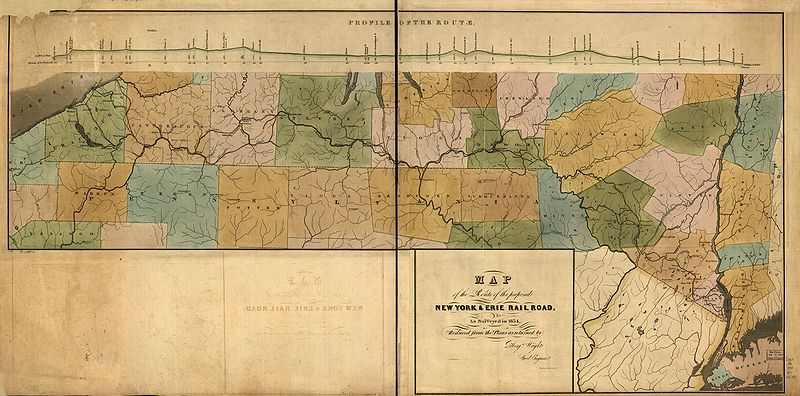
A cool place to find creative commons images (and all sorts of other cool stuff) is wikimedia commons. These will be categorized under specific topics, so they may or may not be good for background images. However, if your site is on a specific topic for which wikimedia commons provides visual content, this may be a good place to look also. Going to the category for large images may find you lots of unexpectedly nice stuff:


The map is abstract enough that it could work with a lot of subjects. The ducks are more problematic, of course - but I can certainly see how a number of these old fashioned prints, nicely cropped and pulled up in random fashion (more on this later) could work with all sorts of subjects.

 (Tip:  Whatever you do as you are searching for visual material, do not use google or yahoo image search in their default state - but only with the correct licensing filters. You really have no way of knowing if the images you find are available for free usage otherwise. And there is certainly enough good stuff out there that you can use without having to resort to shady means.  ;-) 

................................................................................................................................

starting out with some design stuff now :-): background images and screen sizes


OK! Almost ready for some design fun! 

I figured that it might be nice to let you guyz start out with something that should be quite enjoyable - adding a background to your site. But before we get there, I would still like to remind you of something which is actually quite obvious: Not everyone has the same computer set-up and so everyone sees things differently, depending upon how large their screen is. There is a top left bias in all of this, which means that everyone, always, sees the top left corner of the browser. All else that people see varies from resolution to resolution.


The screenshot above shows you how this site is seen at a 1024x768 screen resolution. As the site's content slides left, one of my pixelmen is actually placing himself very nicely behind the header, so I am quite pleased about that. True, folk can no longer see the big pink fellow to the right but since the image that I have is more like an abstract backdrop I can live with that.

 (Tip:  A very nice freeware application that lets you test out screen sizes is Sizer (PC only). I would advise you to make use of it and often check to see how your site looks to others.  ) 

The widest screen resolution which we need to take into account is 1920x1080 or if we think lengthwise 1600x1200. However, this is not as wide or as high as it gets, Wikipedia gives a very nice list going all the way from the smallest to the largest sizes.

Some older websites are designed flush left, but nowadays for the largest part we tend to favor a centered layout. As the screen gets smaller all content will slide to the left of the screen.

 Upshot:  Your background image needs to take all of this into account. It is of no use whatsoever having a gorgeous image where the main elements are on the bottom right since there is no way that someone with a 1024 x 768 display setting is going to be able to see the stuff. It is equally bad to have full background images that are smaller than 1920 x 1200 (1920x1080 - 1600x1200) since anything smaller will result in really nasty patches when viewed on a large screen. So, unless you are tiling a small image (more on this later), always make sure that your full screen background image is larger than 1920x1200 and that the nice parts of the image are located towards the top and left. That way everyone, small and large, will be equally happy!  :-) 

 Update:  While all info above is still valid for most purposes, there is also an update on making resizeable full background images, which you can read here:
http://easypeasydesign.blogspot.com/2011/03/can-you-resize-background-image-on-non.html

................................................................................................................................
Saturday, 5 March 2011

Graphic Designer - fpMarCom


career@fpmarcom.com

Artist - Toronto

We have an exciting pipeline of projects for 2011 and need top-notch Mobile Games Artists! If you are looking to break into the games industry and want to be part of a winning team, this is a perfect match for you. You will be in complete control over the game you will be working on, and will be responsible for learning everything needed to develop these games.

Knowledge of Adobe Creative Suite and a minimum 2 years education from a recognized Design program and experience implementing marketing campaigns is a necessary asset.

Duties Include:
- Must be proficient in Photoshop or be open to learning new techniques.
- Resizing and creating in game graphics based on lead art direction.
- Creating Banner ads and email templates.
- Creating and implementing email templates for marketing.
- Knowledge of Powerpoint is an asset.
- Ability to follow designs and style guides as set out by the Creative Team.
- Will also include working on desktop and mobile website (CSS and HTML would be a nice to have) in game interfaces (buttons and graphics) and marketing promotions with our Creative Team.
- Team Player – Innovation, creative thinking and strategy are strong assets.

The successful candidate will experience hands on tasks that involve reporting to the Art Director and Senior Management, organizing/resizing game art and marketing assets and promotions for our creative team to execute. Strong communication skills are required to be a successful with our marketing, creative department and development teams.

This position is being offered for immediate placement.

Does this sound like a place you’d like to work? We have a passionate team of excellent people and we are looking for top talent. Maybe you can be the next addition to the studio.

Please send your resume and links to an online portfolio. You can also submit your portfolio in other digital formats if you do not have a website.

jobs@xmgstudio.com

better use google chrome...


Most browsers have too many (and often also completely unnecessary) tool bars, don't they? I mean, do you want to see the website or all those boxes which, at a small screen resolution, can easily take away up to a fifth of your web real estate? Big difference is google chrome where they have managed to place things beautifully all in one line. There is a separate bookmarks bar which you can make visible/invisible by doing a quick ctrl+shift+B. And everything else you may need is found under the little wrench icon on the top right. The rest of the screen goes to the actual site that you want to look at.

 (Tip:  One little nasty is that the default google chrome theme is a bit too flashy, which may also distract from the page content. Easily solved: Go to their theme gallery and select something less obtrusive.  ;-) 

................................................................................................................................

Girls Generation - Korean